Vault System Interfaces
Vault Model 2312-NT System Interfaces
Front Panel
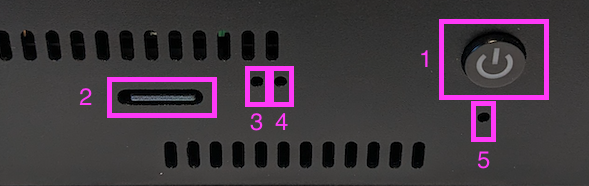
1. Power Button
- When the Vault is off, pushing the power button briefly will turn it on (button will immediately turn blue)
- When the Vault is on and entirely started up, pushing the power button for >3 seconds will safely shut it down
- When the vault is on and not entirely started up, pushing the power button for >10 seconds will cut the power to the system. DO NOT DO THIS unless the safe power down is not working.
2. SD Card
- Your Vault runs generic system software loaded from the SD Card. If the SD Card is removed, or is not fully seated, the Vault will not run.
3. Activity LED
- The green Activity LED will blink when the system is experiencing activity
- This LED will blink intermittently during startup, shutdown, and Diode-related activity.
4. Power LED
- The red Power LED will light when the system is powered on, and will go dark when the system is powered off.
5. Harddrive LED
- The blue Harddrive LED will blink when the Harddrive is experiencing activity
- This LED will be solid-on when the Harddrive is sleeping but online, and it will blink intermittently when the Harddrive is experiencing activity
Back Panel
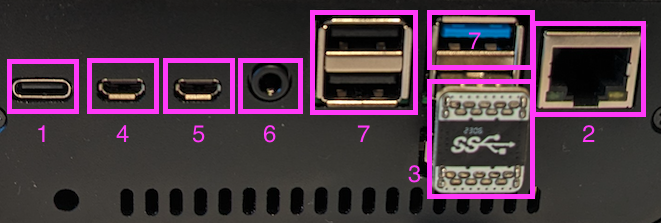
1. Power Input
- This is a USB-C connector for power - please use the power supply provided with the Vault.
- If you've lost the power supply provided with the Vault, replace with a 3A or greater USB-C power supply.
2. Gigabit Ethernet
- Connect a CAT-5 or better Ethernet cable from this interface to an Internet-connected router or switch.
- Your router (or switch) must provide a DHCP IP address to the Vault through this connection (this is common).
3. Harddrive Bridge
- The Harddrive Bridge connector connects the system harddrive to the system controller.
- It should always remain in place during normal operation.
4. Micro HMDI 1
- This is the primary HDMI interface for the system. It will display a desktop if connected to a monitor.
5. Micro HDMI 2
- This is an HDMI interface that has no stock use case.
6. Audio Jack
- This is an audio interface that has no stock use case.
7. USB Connectors
- These are USB interfaces that have no stock uses cases.
- You can connect a keyboard and mouse to these connectors if using a display.